 WP Maintenance Agency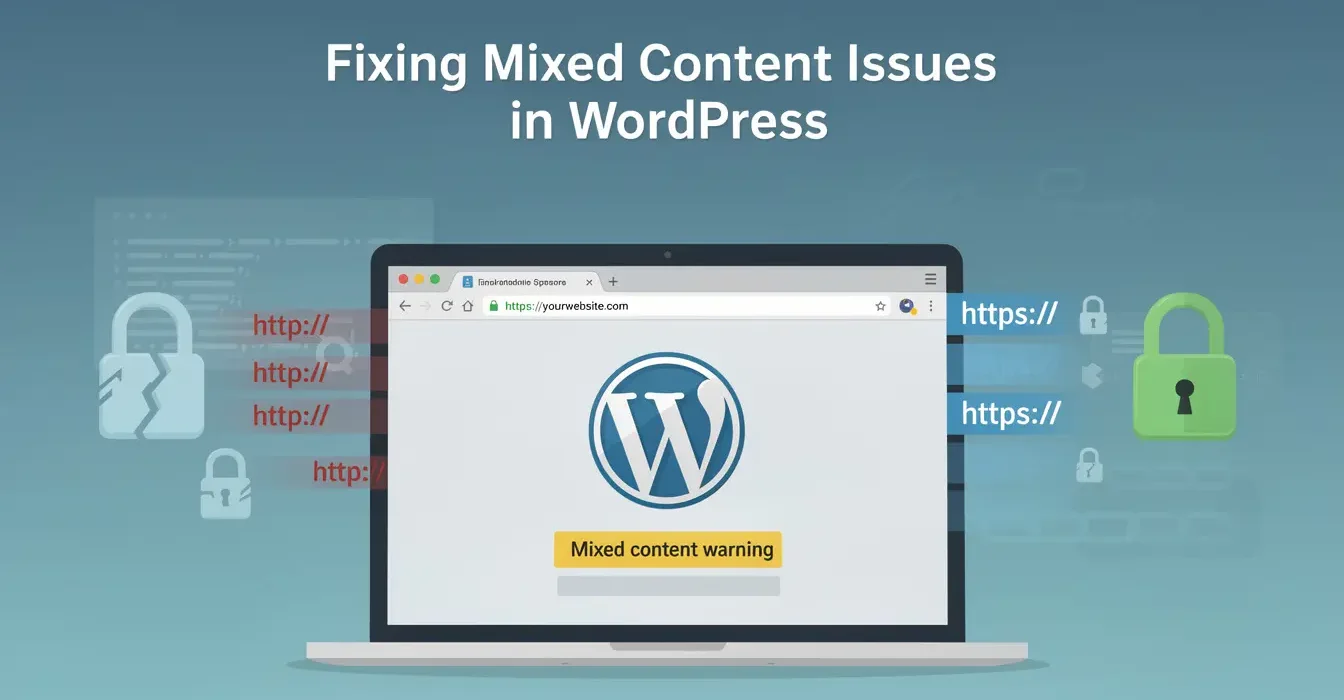
What is mixed content and why does it break your WordPress site?
When your site has an SSL certificate and loads over HTTPS, every resource on the page must also load over HTTPS. If any image, script, stylesheet, or font loads over plain HTTP, that is “mixed content.”
Browsers handle mixed content in two ways:
| Type | What It Affects | Browser Behavior |
|---|---|---|
| Mixed active content | Scripts, stylesheets, iframes, fetch requests | Blocked entirely — functionality breaks |
| Mixed passive content | Images, video, audio | Loaded with console warning (Chrome may block in future) |
What visitors see:
- Broken images (if blocked)
- Missing styles or broken layouts (if CSS is blocked)
- JavaScript features stop working (if scripts are blocked)
- “Not Secure” warning in the address bar despite having SSL
- Browser console full of mixed content warnings
What Google sees:
- A site that is not fully HTTPS (weaker ranking signal)
- Potential security issues flagged in Search Console
What causes mixed content in WordPress?
Mixed content almost always results from one of these scenarios:
1. Site migrated from HTTP to HTTPS but database was not updated
You installed an SSL certificate and changed your site URL to HTTPS, but thousands of internal links, image URLs, and embedded content in your database still reference the old HTTP URLs. This is the most common cause.
2. Hardcoded HTTP URLs in theme or plugin files
A theme template or plugin outputs URLs with http:// hardcoded instead of using WordPress functions like esc_url() or protocol-relative URLs.
3. External resources loaded over HTTP
Third-party scripts, fonts, or images embedded in your content that only support HTTP (rare in 2026, but legacy embeds exist).
4. CDN or external images not configured for HTTPS
Your CDN serves assets over HTTP, or images hotlinked from external sites use HTTP URLs.
How do you fix mixed content after migrating to HTTPS?
This is the standard fix for the most common scenario: you have SSL installed, WordPress URLs are set to HTTPS, but content still references HTTP.
Step 1: Verify WordPress URLs are HTTPS
In wp-admin, go to Settings > General. Both fields should show HTTPS:
- WordPress Address (URL):
https://yourdomain.com - Site Address (URL):
https://yourdomain.com
If these still show HTTP, update them. Or via WP-CLI:
wp option update siteurl 'https://yourdomain.com'
wp option update home 'https://yourdomain.com'
Step 2: Search and replace HTTP URLs in the database
This is the critical step most people miss. Your database contains thousands of references to http://yourdomain.com in post content, widget text, theme options, and plugin settings.
Using WP-CLI (recommended):
wp search-replace 'http://yourdomain.com' 'https://yourdomain.com' --all-tables --dry-run
Review the dry-run output to see how many replacements will be made. If it looks correct:
wp search-replace 'http://yourdomain.com' 'https://yourdomain.com' --all-tables
Important: If your site uses www, run the replacement for both variants:
wp search-replace 'http://www.yourdomain.com' 'https://www.yourdomain.com' --all-tables
Using a plugin (if no CLI access):
Better Search Replace plugin performs the same operation through wp-admin. Install it, run the replacement, then delete the plugin (you only need it once).
Step 3: Force HTTPS redirect at the server level
Ensure all HTTP requests redirect to HTTPS. This catches any remaining HTTP links from external sites, bookmarks, or cached pages.
Apache (.htaccess):
RewriteEngine On
RewriteCond %{HTTPS} off
RewriteRule ^(.*)$ https://%{HTTP_HOST}%{REQUEST_URI} [L,R=301]
Nginx:
server {
    listen 80;
    server_name yourdomain.com www.yourdomain.com;
    return 301 https://$server_name$request_uri;
}
Step 4: Update hardcoded URLs in theme files
Search your theme files for hardcoded HTTP URLs:
grep -r "http://" wp-content/themes/your-theme/ --include="*.php"
Replace any hardcoded URLs with HTTPS versions, or better, use WordPress functions:
// Instead of hardcoded URLs:
echo esc_url(home_url('/path/'));

// For assets:
echo esc_url(get_theme_file_uri('assets/image.png'));
How do you find all mixed content on your WordPress site?
After running the search-and-replace, verify that no mixed content remains:
Browser DevTools (per-page check):
Open Chrome DevTools (F12) > Console tab. Mixed content warnings appear as yellow or red messages with the exact URL of the insecure resource.
Why No Padlock (whynopadlock.com):
Enter your URL and it scans for all insecure resources on that page. Useful for quick checks.
Screaming Frog (site-wide scan):
Crawl your entire site and filter for “Insecure Content” in the response codes. This catches mixed content across all pages, not just the ones you manually check.
SSL Labs test:
Run your domain through ssllabs.com/ssltest to verify your SSL configuration is correct and complete.
How do you fix mixed content from external resources?
Some mixed content comes from third-party sources you do not control:
External images in old blog posts:
If you embedded images from external HTTP-only sources years ago, you have two options:
- Download the images, upload to your media library, and update the posts
- Use a plugin like SSL Insecure Content Fixer to attempt protocol-relative rewrites
Third-party scripts:
If a third-party service only offers HTTP embed codes, check if they have updated their documentation. Most services support HTTPS in 2026. If they genuinely do not support HTTPS, consider whether that service is worth the security warning it creates.
Google Maps, YouTube, and social embeds:
These all support HTTPS. If old embeds use HTTP, the database search-and-replace should catch them. For YouTube specifically, replace http://www.youtube.com with https://www.youtube.com in your search-and-replace.
How do you prevent mixed content from recurring?
After fixing existing mixed content, prevent new instances:
1. Set a Content-Security-Policy header:
Header set Content-Security-Policy "upgrade-insecure-requests"
This tells browsers to automatically upgrade HTTP requests to HTTPS. It is a safety net, not a fix — but it prevents mixed content warnings while you clean up remaining issues.
2. Use relative URLs or WordPress functions for all internal links:
Never hardcode full URLs with protocol in theme or plugin code. Use:
home_url('/path/')for internal linksget_theme_file_uri()for theme assets- Protocol-relative URLs (
//example.com/resource) for external resources that support both
3. Configure your CDN for HTTPS:
If you use a CDN (Cloudflare, BunnyCDN, KeyCDN), ensure it serves all assets over HTTPS. Most CDNs default to HTTPS in 2026, but legacy configurations may still serve HTTP.
4. Check plugin output:
Some older plugins output HTTP URLs in their frontend markup. After fixing your database, if mixed content persists on pages using specific plugins, check that plugin’s settings for URL configuration options.
Frequently Asked Questions
Yes. Google confirmed HTTPS is a ranking signal, and mixed content means your site is not fully HTTPS. Additionally, if mixed content triggers browser warnings or blocks resources, it can affect page rendering, load time, and user experience metrics — all of which influence rankings indirectly. Fix mixed content to get the full SEO benefit of your SSL certificate.
Plugins like Really Simple SSL and SSL Insecure Content Fixer can fix many mixed content issues by rewriting URLs on the fly. However, they add processing overhead to every page load and mask the problem rather than fixing it at the source. The proper fix is a database search-and-replace plus server-level HTTPS redirect. Use plugins as a temporary measure while you implement the permanent fix.
Check these sources: serialized data in plugin options (some search-replace tools miss serialized arrays), widget content, theme customizer settings, and hardcoded URLs in CSS files. Also clear all caches (page cache, CDN cache, browser cache) after making changes. Cached pages will continue showing mixed content until the cache expires or is purged.
Mixed content warnings you cannot resolve?
We track down stubborn mixed content sources and fix them permanently.